Windows NLRM Installation Guide
This guide describes the installation of Network License and Reporting Manager (NLRM) on a license server. Before installing NLRM, any previously installed Autodesk Network Licensing Solutions (such as NLM and NLRS) should be uninstalled.
In addition, refer to the NLRM Installation Planning Checklist and Windows Preinstallation Guide before proceeding with installation of NLRM to ensure that your license server meets the requirements.
Note: Do not install NLRM on a directory shared over the network
Installation Overview
The Windows installation process includes these five steps:
- Install NLRM
- Configure NLRM
- Test your connection
- Start NLRM
- Verify that the license server is running successfully
Detailed instructions for each of these steps follows.
Install NLRM
- Launch the installer by double-clicking the .msi file. The .msi file has this format:
NLRM-4.17-293-x86_64.msi.
- Select the installation folder location. The default is C:\Autodesk\NLRM. Note: Multi-byte character file paths (such as C:\Autodesk\おはよう) are not supported.
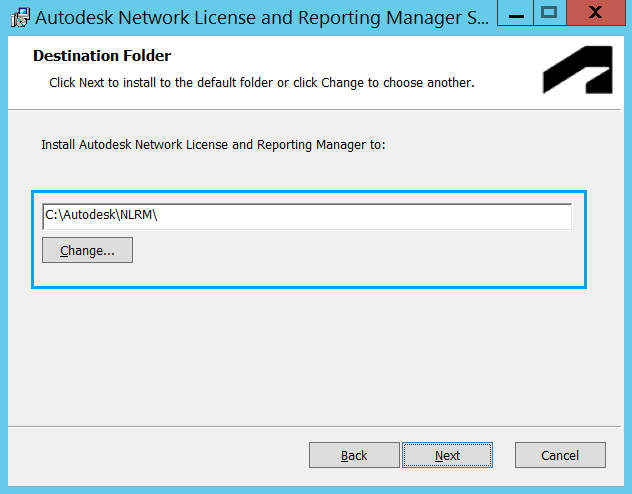
- Click Next and finish the installation.
This step involves three tasks: NLRM setup, configuring LMTOOLS, and configuring the NLRM service user account.
NLRM setup must be run if: This is the first time NLRM is being installed OR Setup was not run with the earlier version of NLRM installation
The setup workflow will help you perform the following tasks as required:
- Installing the NLRM authorization certificate
- Configuring Personally Identifiable Information (PII) masking
- Configure customer email address
- Testing your connection
To start this workflow,
Open a command prompt as administrator
Go to the location where NLRM is installed. The default location is C:\Autodesk\NLRM
Run this command to initiate NLRM setup:
nlrm_config.exe setup
Complete setup by following the on-screen instructions.
Note:
- PII masking flag must be set and should be the same value as used in previous NLRS/NLRM installation.
- If the connection fails, please check the proxy and firewall settings
For Token Flex license servers which cannot connect to Autodesk directly, following additional setup is required.
When the transmit-mode is set to manual, you may configure offline duration allowance (1 to 30 days) which is otherwise defaulted to 30 days. The usage data must be exported and transmitted to Autodesk servers, before the configured offline duration allowance is elapsed since the last time usage was collected from the license server.
To set offline duration allowance, use the following command:
nlrm_config.exe set offline-duration-allowance-days <number within range 1 to 30>
For data transmission to Autodesk servers, please refer to the instructions here:
If you have configured NLRM previously and wish to perform specific operations only, follow Re-configure NLRM Settings. These commands should be executed in consultation with your Autodesk support contact.
In some cases, you may need to reconfigure LMTOOLS.
NOTE: You can skip this step if you upgraded from a previous version of NLM/NLRM and have installed it in the same directory
Launch the LMTOOLS utility using one of the following methods:
- Run the LMTOOLS utility icon from the desktop
- Double-click lmtools.exe in the install folder
From the Config Services tab, create a service named Autodesk Network Licensing service (or choose your own service name). Ensure that:
- Paths to the lmgrd.exe, license and debug log files are configured correctly.
- "Use Services" is checked.
- "Start Server at Power Up" is checked.
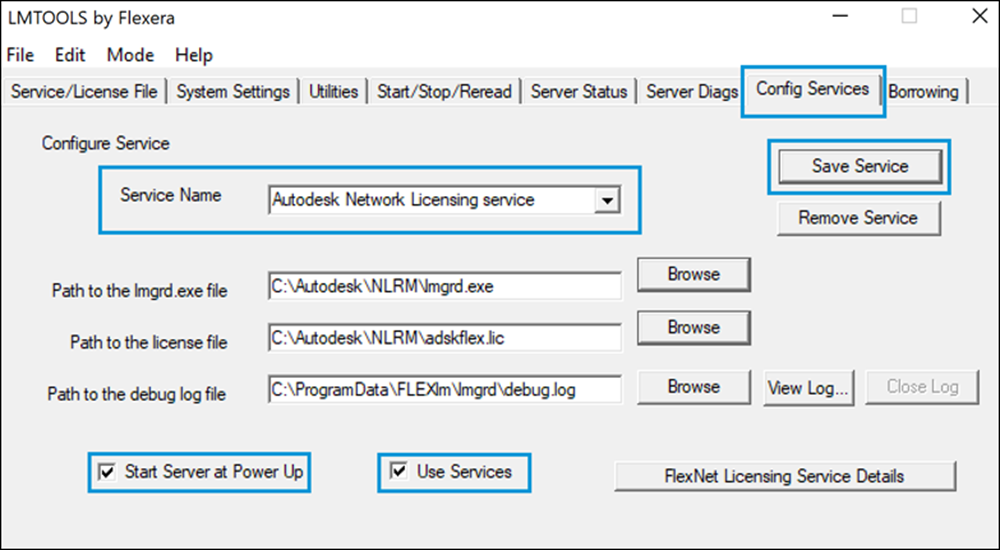
Note: You no longer need to add the append mode (+) to the start of the selected debug log file (previously required for using NLRS as the reporting service).
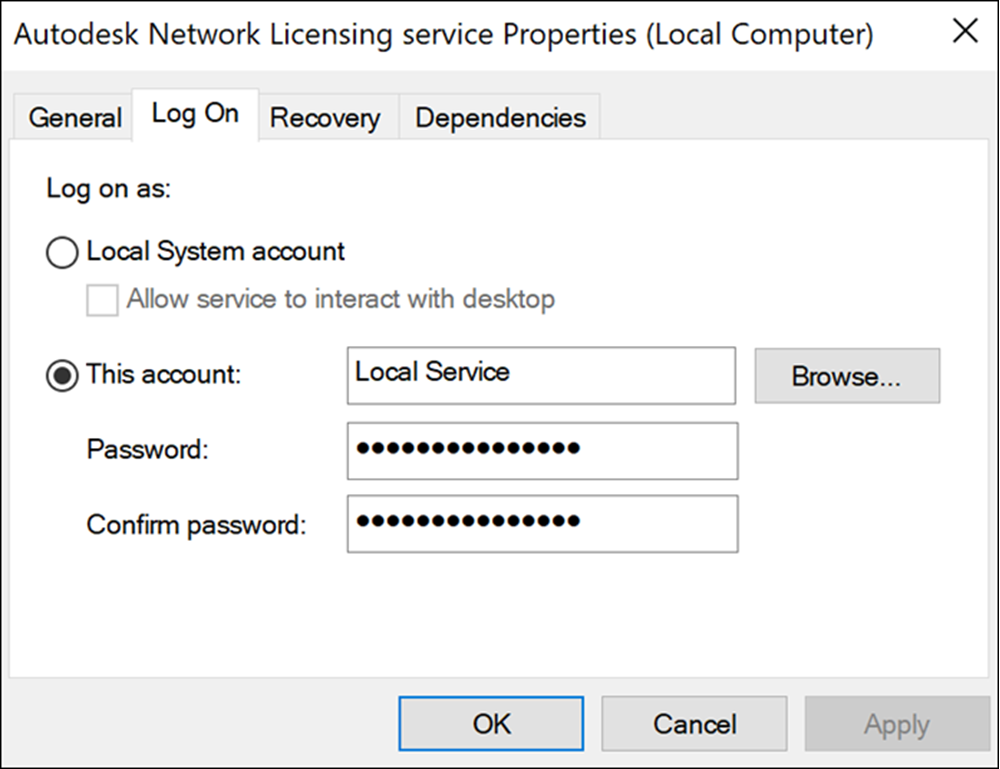
Ensure that the NLRM service user account references the account you intend to use. Although Local Service is the default value, it may not be correct for you.
Check the account settings and change them if necessary.
Open Windows Services Manager and double-click the NLRM service.
Select the Log On tab of Autodesk Network Licensing Service (or the service name you provided in LMTOOLS) Properties.
Verify the settings are correct. (They may have changed from the previous settings to Local Service.)
- For non-auth proxy or no-proxy
- For Authenticated Proxy it is required to use the proxy user account
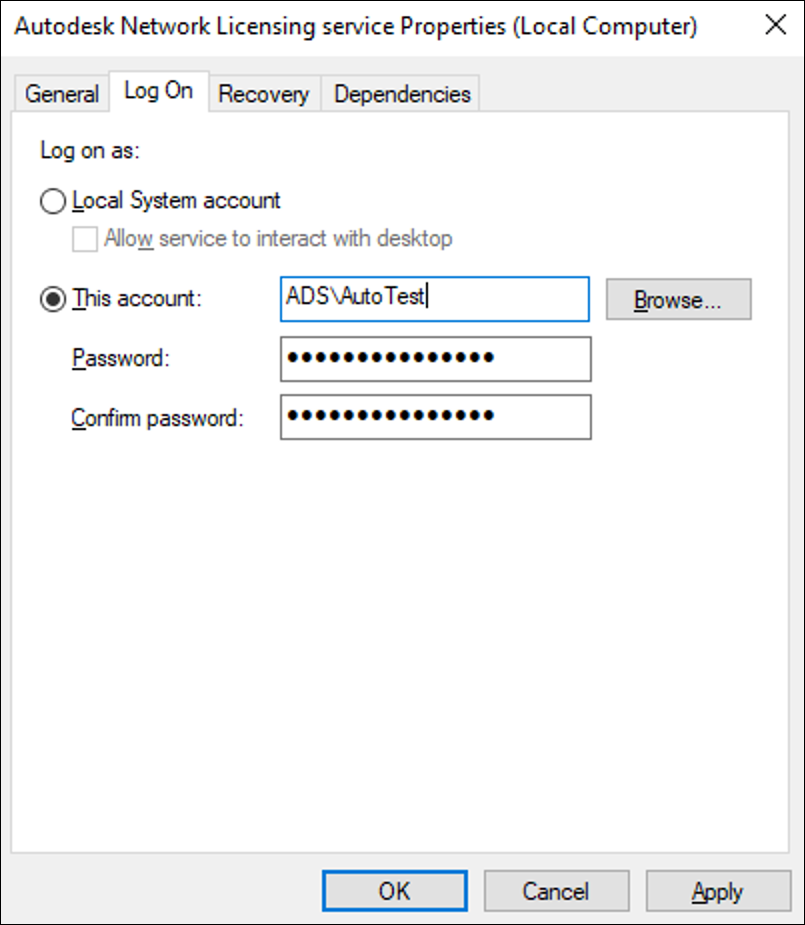
Update the settings if necessary.
Close the service properties window.
Start NLRM
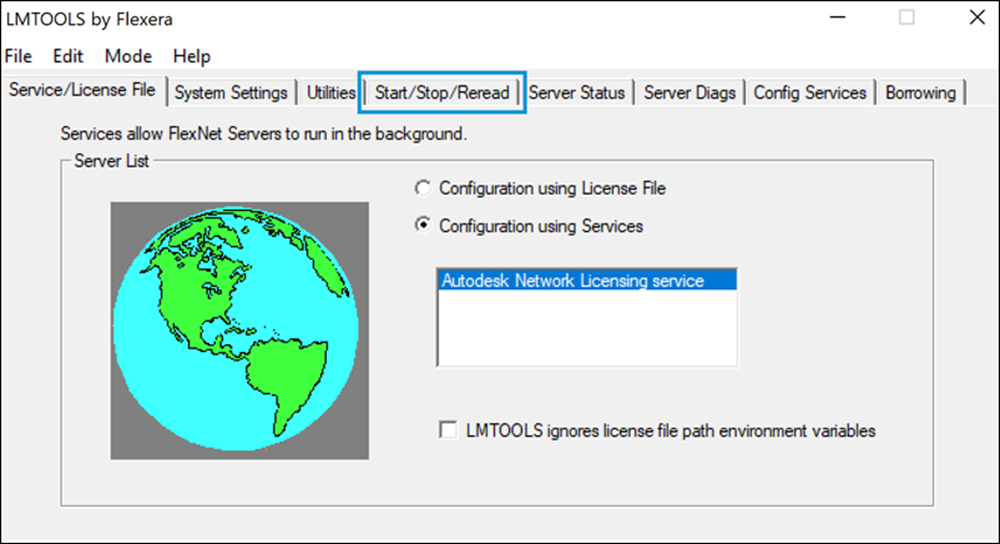
To start your license server, launch LMTOOLS by double clicking lmtools.exe in the NLRM installation folder.
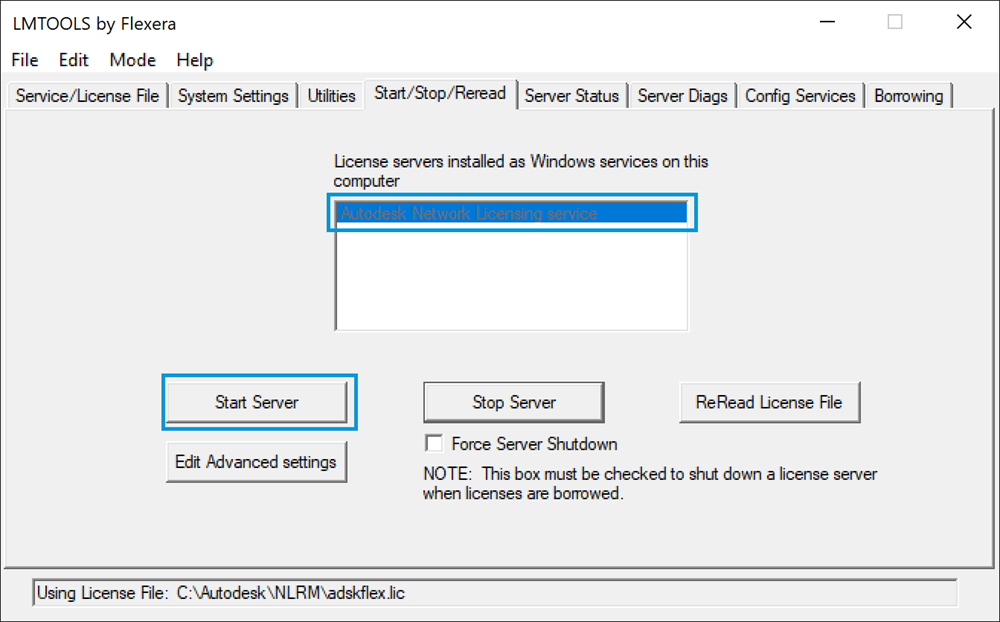
From the Start/Stop/Reread tab of the LMTOOLS configuration panel, under Configuration Using Services, select Autodesk Network Licensing service (or service name that you have provided in the Config Services panel).
 Click Start Server.
Verify that your license server is running successfully
Online Server
When the license server starts, it automatically sends a license server start event message back to Autodesk. You can verify that your server is running by following these steps to inspect the application logs:
- In a text editor, open: %PROGRAMDATA%\Autodesk\NLRM\4.17\logs\collection_dispatcher_car-park.log
Note: This file is created almost immediately after the license server has started.
A complete segment of the log file should look similar to the following example. If it does, your license server has started, is running correctly and able to communicate with Autodesk successfully.
```
Starting Autodesk Collection Dispatcher v4.17 ...
Autodesk Server Url => https://car2.autodesk.com
Source => C:\ProgramData\Autodesk\NLRM\car.park
Re-dispatch Target => C:\ProgramData\Autodesk\NLRM\re
Log File => C:\ProgramData\Autodesk\NLRM\4.17\logs\collection_dispatcher_car-park.log
Initializing transmitter ...
Check for messages older than 2022-03-10 04:29:35.842564994 UTC , completed in 33.563µs
Starting to transmit data ...
Sending data: 1
[POST] https://car2.autodesk.com/api/v1/event
request => {"event_origin":{"application_info":{"name":"NLRM","version":"4.17"},...
response_code => 200
response => {"message":"Request has been successfully processed","time_to_next_request_ms":100}
collection_dispatcher::event_processor::web_transmit    Message processed successfully.
collection_dispatcher::event_processor::web_transmit    Message queue completed processing.
```
Offline Server
When the license server starts, it automatically creates a license server start event. You can verify that your server is running by following these steps to inspect the application logs:
- In a text editor, open: %PROGRAMDATA%\Autodesk\NLRM\4.17\logs\collection_dispatcher_car-park.log
Note: This file is created almost immediately after the license server has started.
A complete segment of the log file should look similar to the following example. If it does, your offline license server has started, and is collecting usage data locally.
```
Starting Autodesk Collection Dispatcher v4.17 ...
Autodesk Server Url => https://car2.autodesk.com
Source => C:\ProgramData\Autodesk\NLRM\car.park
Re-dispatch Target => C:\ProgramData\Autodesk\NLRM\re
Transmit Mode => manual
Log File => C:\ProgramData\Autodesk\NLRM\4.17\logs\collection_dispatcher_car-park.log
Check for messages older than 2022-03-10 05:46:40.811245673 UTC , completed in 21.52µs
collection_dispatcher::event_processor::manual_transmit Message queue completed processing.
```
Parent page: About Network License and Reporting Manager (NLRM)
|